Aardy Manager (Mac)
Adding photos with Source Folders
Import once or watch a folder, use a NAS or a Photos album, and understand the badges.
Source Folders is where photos come into Aardy. Importing copies each photo into Aardy's library, recognizes duplicates by content, reads each photo's date and location, and prepares display-sized copies. Your original folders are never changed.
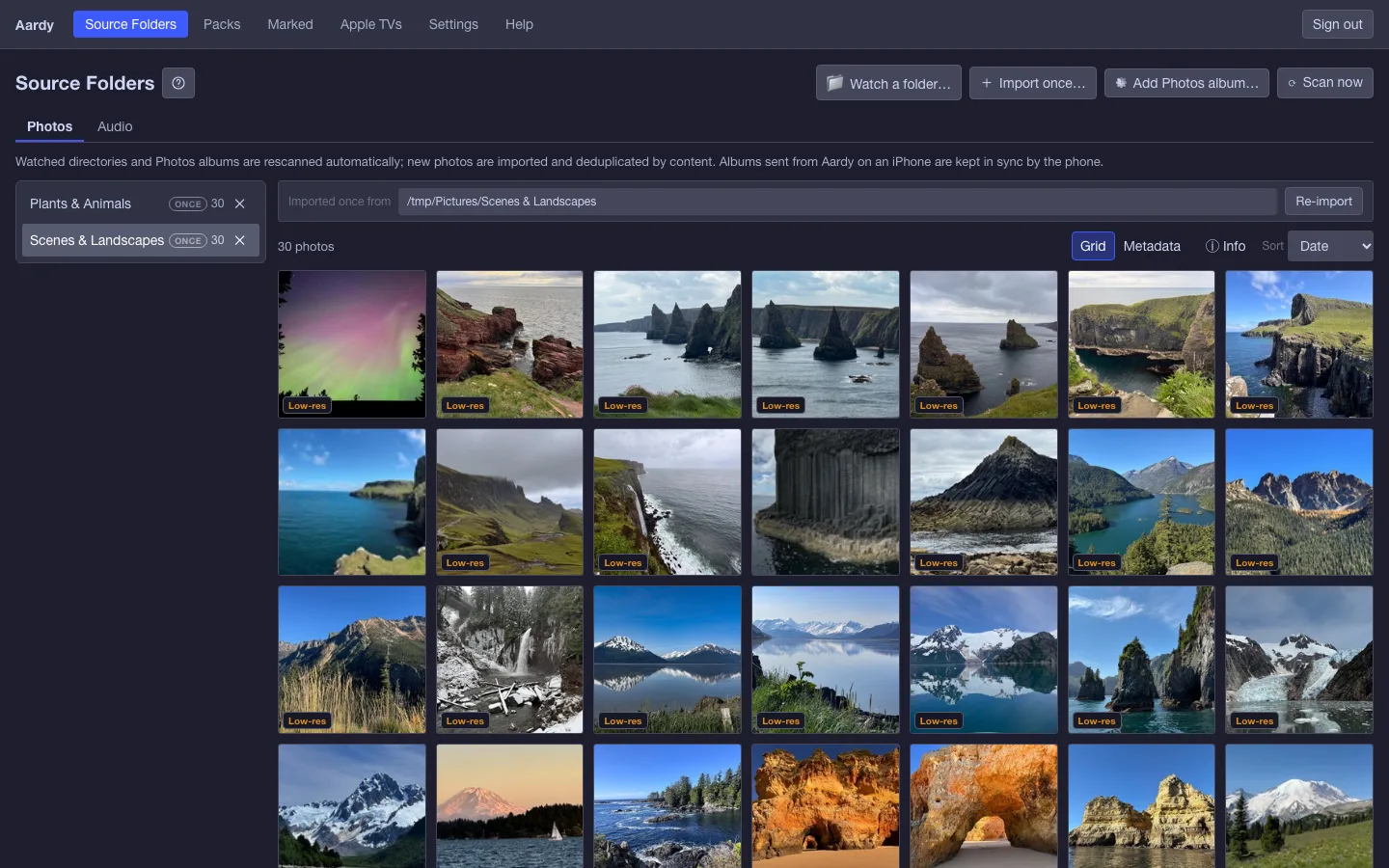
Import once or watch
- Watch a folder… adds a folder Aardy rescans on its own, so new photos appear without any work. Use it for folders you keep adding to.
- Import once… imports a folder's photos one time and does not rescan it.
- Add Photos album… keeps a source folder in sync with an album in the Mac's Photos app. See below.
Browsing for a folder
The folder browser shows the Mac's disks. Click into folders, use the up arrow to go back, then choose the folder you are in and give it a name.
Network drives and external drives
Mount a network drive on the Mac first: in Finder choose Go, then Connect to Server…, for example smb://nas.local/Photos. Then browse to it under /Volumes. External drives appear there too.
Important: On a Mac shared with every user, network drives and folder permissions belong to whoever is logged in. If another user's session is the one serving, a drive only they mounted shows as Unreachable. Have each user mount the drive, for example by adding it to Login Items.
macOS may ask whether Aardy can access a folder, a removable drive or a network volume. Say yes, or switch Aardy on under System Settings, then Privacy & Security.
Photos albums
Add Photos album… lists the albums in the Photos library of the Mac user Aardy runs as: your own albums, albums inside Photos folders, iCloud Shared Albums, and smart albums such as Favorites, Recently Added and All Photos. Pick one, name the source folder, and choose Sync this album.
- Permission. The first time, choose Allow access. macOS then asks on the Mac's own screen. If you said no, turn Aardy on under System Settings, then Privacy & Security, then Photos.
- It stays in sync. New photos in the album import on their own. A photo you edit in Photos is imported again with your edits. A photo you take out of the album leaves the source folder but stays in any pack that already uses it. Sync now checks straight away, and Use originals imports unedited versions instead.
- iCloud. If the Mac uses Optimize Mac Storage, the first sync downloads each original, which can take a while for a big album.
- Shared Albums are stored by Apple at about 2048 pixels, below 4K, so they look softer on a large TV.
- Favorites. A photo with the heart in Photos gets a Favorite tag in every pack that holds it, and loses it when you remove the heart. A Favorite tag you added yourself is never removed.
- People and Memories cannot be synced, because Apple does not share them with other apps.
Packs built from Photos albums show a Photos badge.
Keep an iPhone folder after the visit
When the kids visit, their iPhones can share an album with your Mac, and it shows up here as an iPhone folder. Once the visit is over you can keep those moments for next time. Select the folder and choose Keep on this Mac.
- The phone stops updating the folder. It becomes an ordinary folder on this Mac, like one you imported yourself.
- Every photo stays. Nothing is removed from the folder or from the library.
- Packs keep their photos. A pack that used the album keeps every photo, in the same order, with its labels and hidden photos, and its Favorites stay marked.
- Removing is different. The remove button (x) takes the folder away. Keep on this Mac keeps it.
- On the phone, the album no longer shows as sent to this Mac. If the phone offers to send it again, that adds a new folder.
Re-importing
Watched folders and synced albums pick up changes by themselves. Scan now rescans a folder right away.
Hiding a photo everywhere
Hiding a photo on this screen hides it in every pack. To skip it in just one pack, use the eye button in the pack builder instead.
Failures and what they mean
- Unreachable. The Mac could not see that folder at its last scan, usually because a network drive or external disk is not mounted. Imports pause, but photos already imported keep playing. Mount the drive and it resumes at the next scan, or choose Scan now.
- Other user. A Photos album belongs to the Mac user whose Photos library holds it. On a shared Mac it syncs only while that user's copy of Aardy is serving. Its photos keep playing.
- A warning mark next to an album. Hover over it. Photos access is not granted means Aardy needs switching on under Privacy & Security, then Photos. No longer exists means the album was deleted in Photos. Remove the source folder, or leave it: its photos stay in your packs.
Music folders
The Audio tab on this screen is where music folders go. See Audio and music.