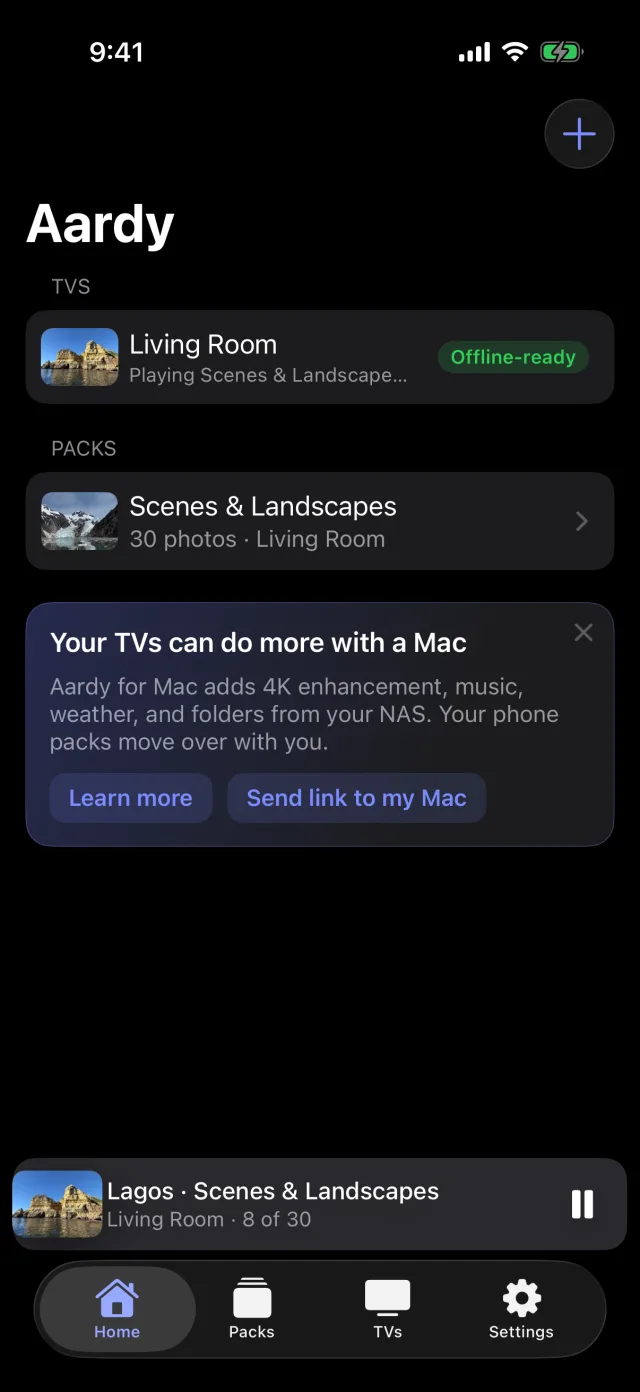
Aardy for iPhone
Getting started with Aardy for iPhone
What you need, the permissions Aardy asks for, and your first launch.
Aardy for iPhone puts albums from your phone on your Apple TVs, and lets you start and follow the slideshow from the couch. It works two ways:
- On its own. The phone sends TV-sized copies of your photos straight to each Apple TV. The TV keeps them, so the slideshow keeps playing after the phone leaves the house.
- With Aardy on a Mac. The phone becomes a remote for the Mac. Your albums become sources on the Mac and the TVs keep talking only to the Mac. See Pairing with a Mac.
The phone chooses by itself each time it opens: if it finds a Mac it is paired with, it uses the Mac. Otherwise it works on its own.
What you need
- An iPhone with iOS 17 or later, on the same Wi-Fi network as your TVs.
- Aardy open on each Apple TV, in a version recent enough for iPhones. An older TV app cannot be found by the phone. Update it and open it.
- Two permissions, which Aardy asks for: Photos (choose Full Access; with Limited Access Aardy can only use the photos you picked) and Local Network (to find your TVs and Mac).
First launch
- Aardy asks What should your TVs call this phone? Type a name such as Erik's iPhone. TVs, the Mac and other phones show this name, for example "Started from Erik's iPhone".
- Finding your TVs looks for Apple TVs and Macs on the network for a few seconds.
- If a TV is missing, tap My TV isn't listed. Check that Aardy is open on the TV and the phone is on the same Wi-Fi, or type the TV's IP address. On the TV, the tvOS Settings app, then Network, shows it.
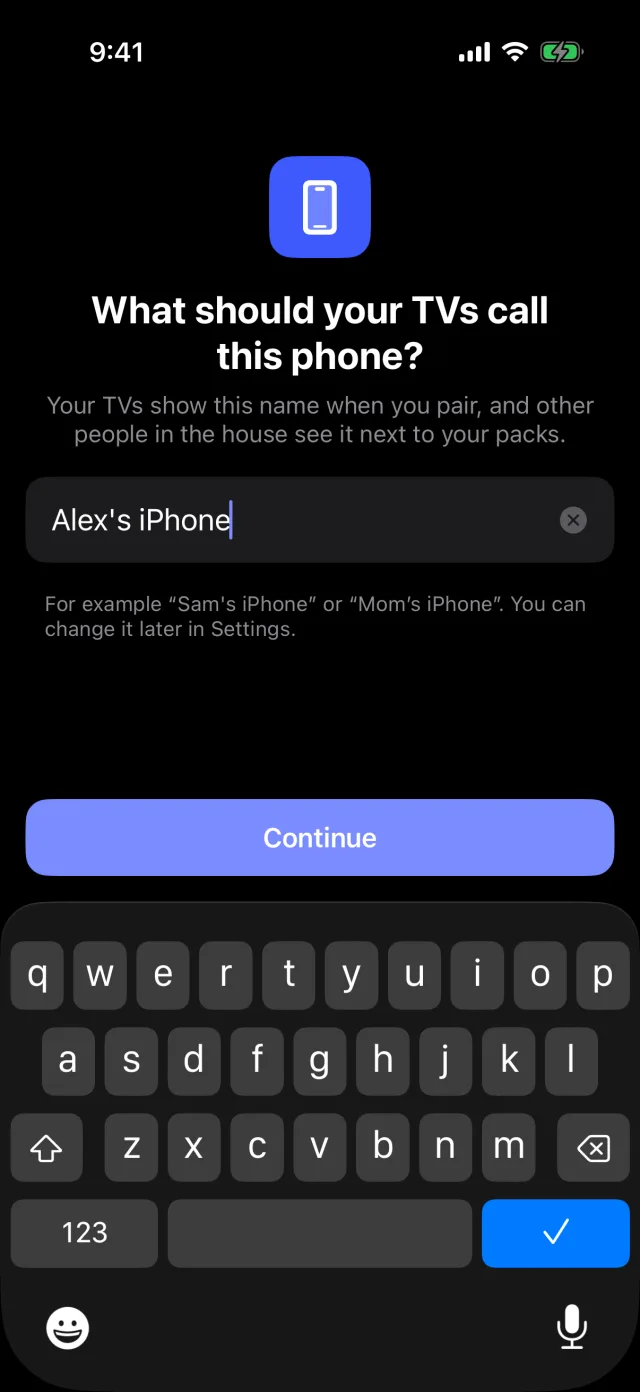
You can change the name later in Settings, and the change reaches your TVs and the Mac.