Aardy Manager (Mac)
Packs and the pack builder
Make a pack, add photos, set the order, group stacks, add captions and tags, and hide photos.
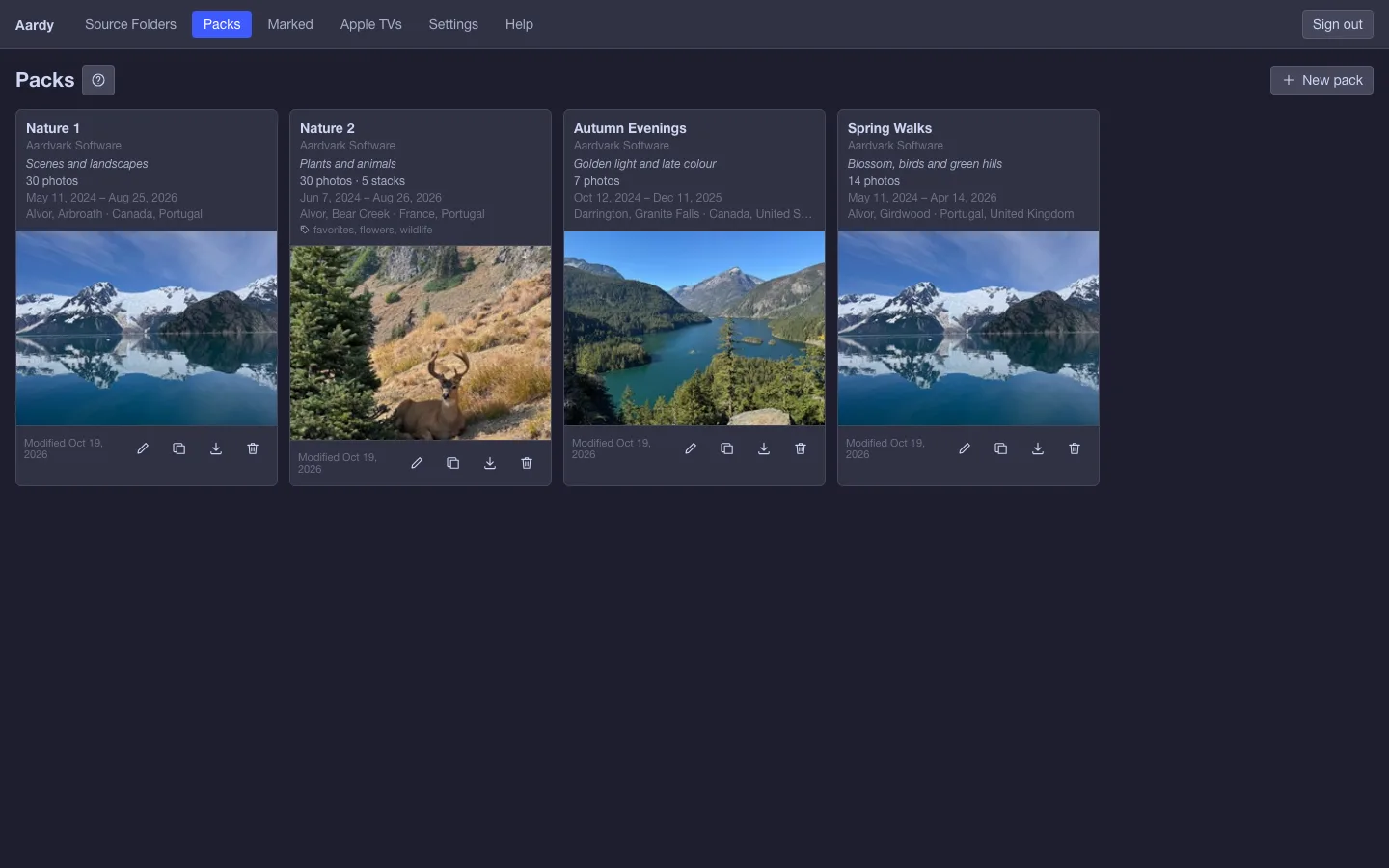
A pack is a collection of photos that plays together, with its own order, look and sound. A family trip, a year, a person, a place: whatever you like. TVs are assigned packs on the Apple TVs page.
Create a pack
- In Packs, choose New pack and open it. That opens the pack builder.
- On the left (the source pane), tick the source folders to browse. The newest is listed first and is the only one ticked when the builder opens.
- Select photos and choose Add selected to pack. Photos already in the pack are skipped, so a pack never holds the same photo twice.
Packs can be duplicated. Duplicate copies a pack's photos and settings under a new name.
Finding and selecting photos
- The icon toggles filter the preview: Landscape, Portrait, Screenshots, and New since this pack was last edited.
- The magnifier buttons change thumbnail size. The info toggle shows each photo's date and place under it.
- Click to select, shift-click for a range, and Command or Ctrl-click to add or remove one. Double-click to zoom.
The gallery and play order
The gallery on the right is the pack in play order. You can drag photos, or use the four arrow buttons to move the selection to the front, forward, backward or to the back. Moving anything switches the pack to Manual order.
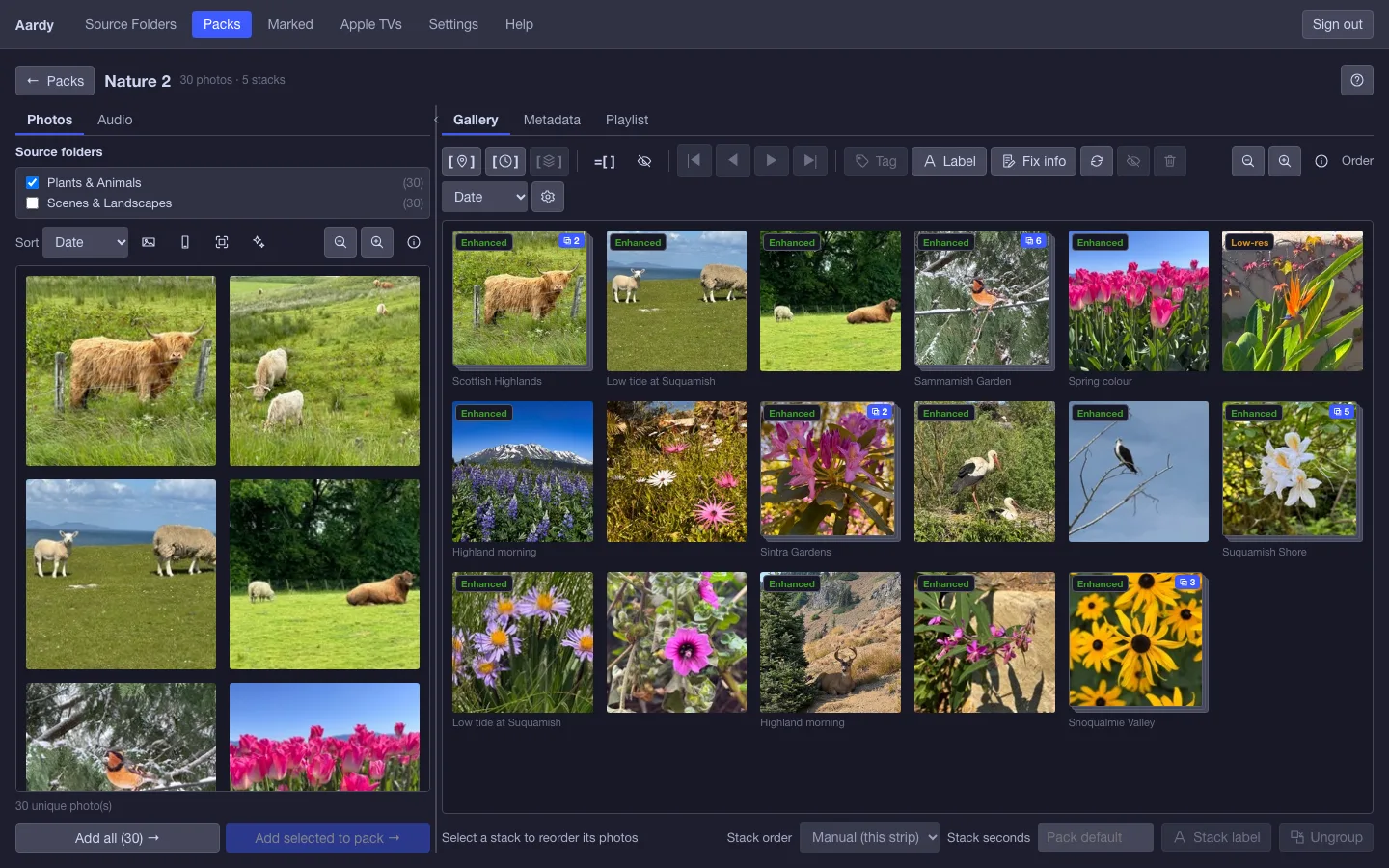
The Order menu sets how the whole pack plays: Date, Location or Manual. In Manual order, the list button beside it shows rows with up and down arrows to move one photo a place at a time.
A pack's settings also include Shuffle. Shuffle shuffles units, so stacks stay together and in their own order.
Stacks and pacing
A stack is a group of photos that act as one unit, like a burst of the same moment. The bracketed buttons group photos by place, by time, or the selected photos by hand. A stack shows as one cell with a count.
- A stack has its own order setting and its own Stack seconds, which overrides the pack's time per photo for every photo in the stack.
- Ungroup breaks a stack apart. The photos stay in the pack.
- The toggle that shows only stacks is for a quick look. Moving and grouping are off while it is on.
Labels and captions
A label is a caption drawn over the photo on the TV. In the zoom view, the label panel lists labels already used in this pack, so you can click one instead of retyping it. Dates and places come from the photo itself; see Fixing dates and places.
Tags
Tags belong to a pack. They feed the playlist filters on each TV, so a TV can show only the photos with a given tag. Tag or label acts on the selected photo or, for a stack, on the whole stack.
Hide, show, and remove
- The eye button hides the selection in THIS pack. The photo stays in the pack and in your library but is skipped while the pack plays. Hidden photos are greyed with a Hidden badge. Press the button again to show them.
- Hiding a stack hides the whole stack. Its members stay individually visible, so ungrouping later gives them back.
- Remove takes the photo out of this pack entirely. It stays in your library.
Note: A photo from a linked iPhone album comes back the next time the album syncs, so Remove offers to hide it instead.
Zoom
Double-click any photo. Click the left or right quarter, or use the arrow keys, to step through. Press Escape to close. For an enhanced photo, an Original / Enhanced switch lets you compare.
Resolution badges
Enhanced means the photo was smaller than a 4K screen so an upscaled copy was made. Low-res means smaller than a 1080p screen and not enhanced, so it may look soft on a TV.
Download a pack
The download button on a pack in the packs list saves all of its photos as a .zip of the original files. Use it to keep a copy or share a set of photos.
Settings, and where it appears
Choose the gear in the gallery toolbar for the pack's presentation settings.