Aardy for iPhone
Send albums to your TVs
Make a pack from your albums and send TV-sized copies to the TVs you choose.
Without a Mac, a pack made on your phone goes straight to your TVs.
Make a pack
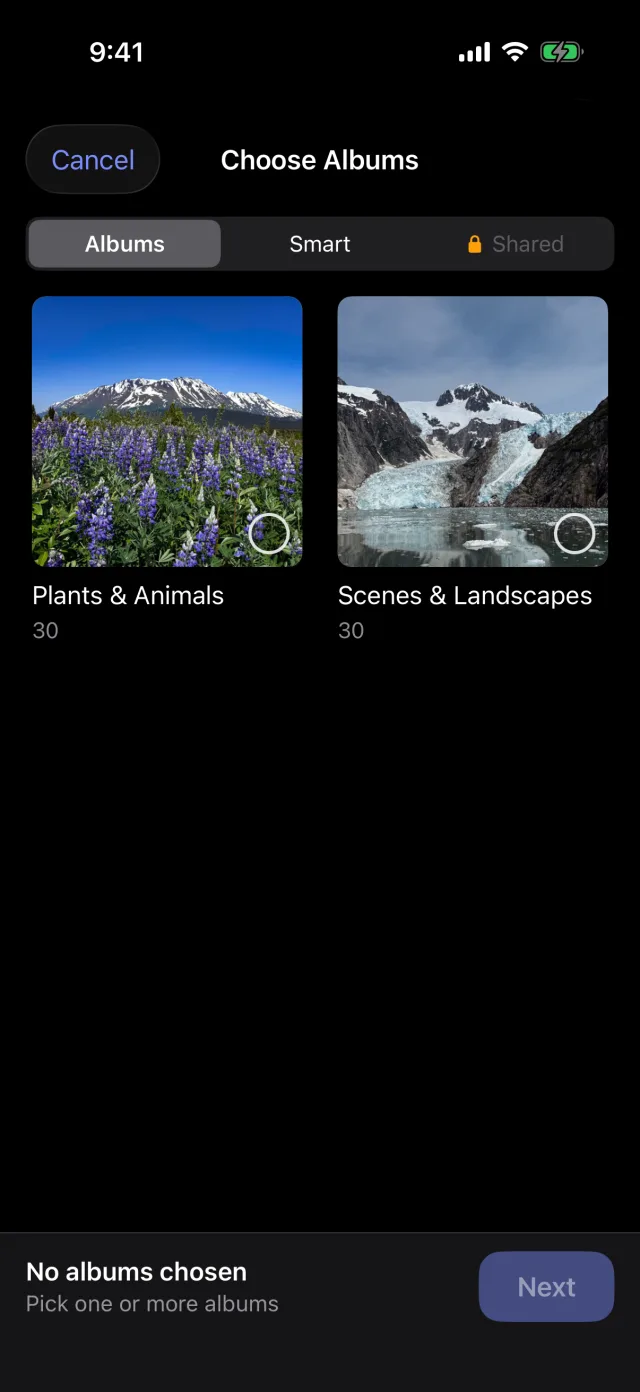
- Tap + (or Make a pack) and choose albums: your own albums and smart albums such as Favorites, Recents and People. Shared Albums need a Mac.
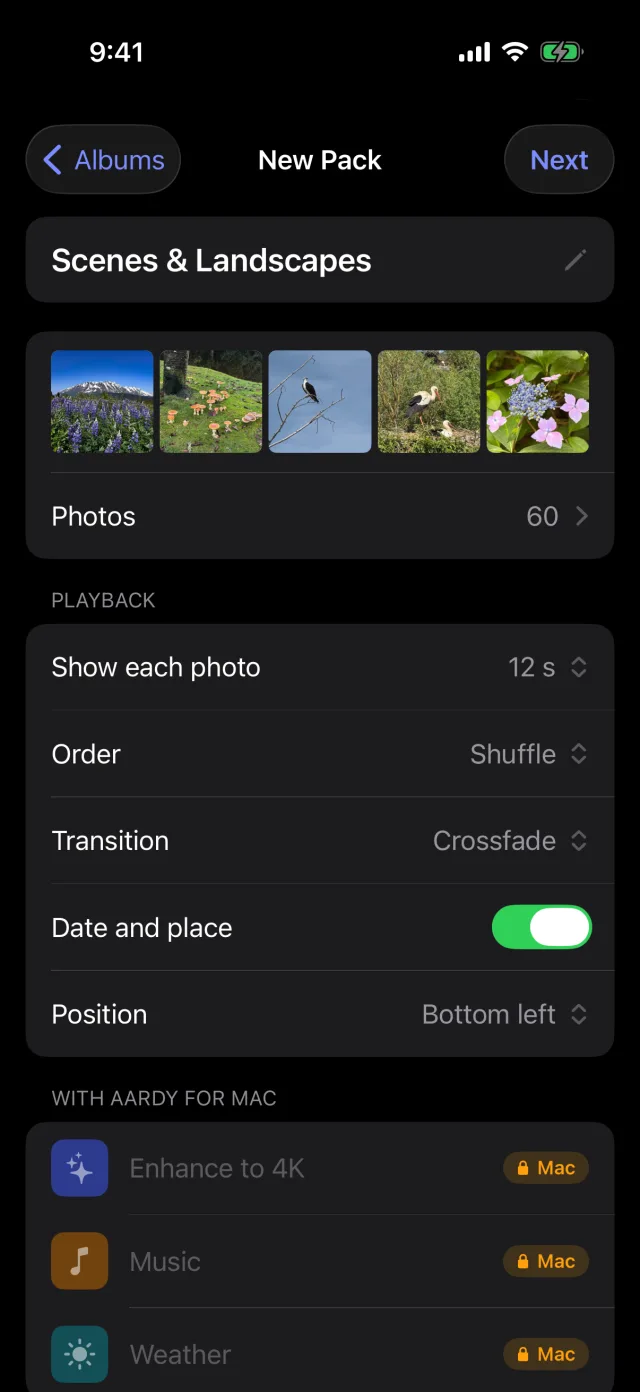
- In the pack editor, set the interval, order, transition, and whether the date and place show and where. Tap photos to leave them out. The editor shows the size, for example About 718 MB at 4K, fits on both TVs.
Send to TVs
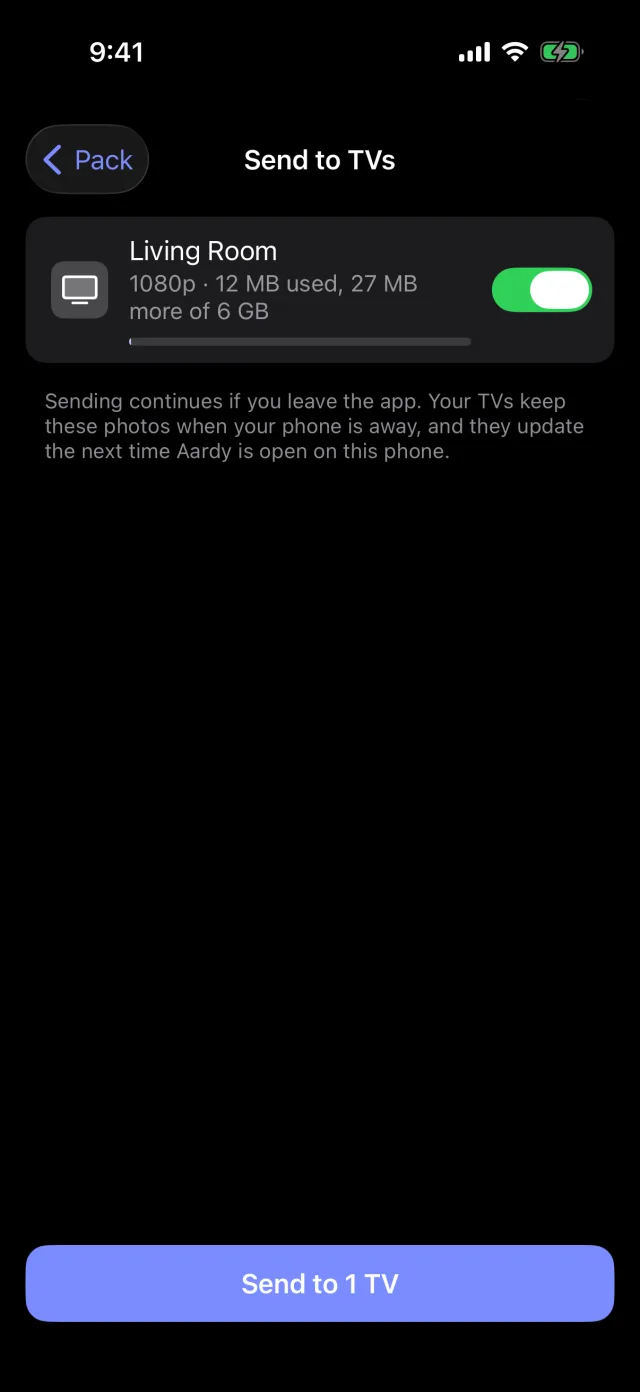
Tap Send to TVs and choose which TVs get the pack. Each TV shows how much room is left and whose packs use it. Aardy makes a copy of each photo sized for that TV and uploads it. It keeps going if you switch apps.
Good to know
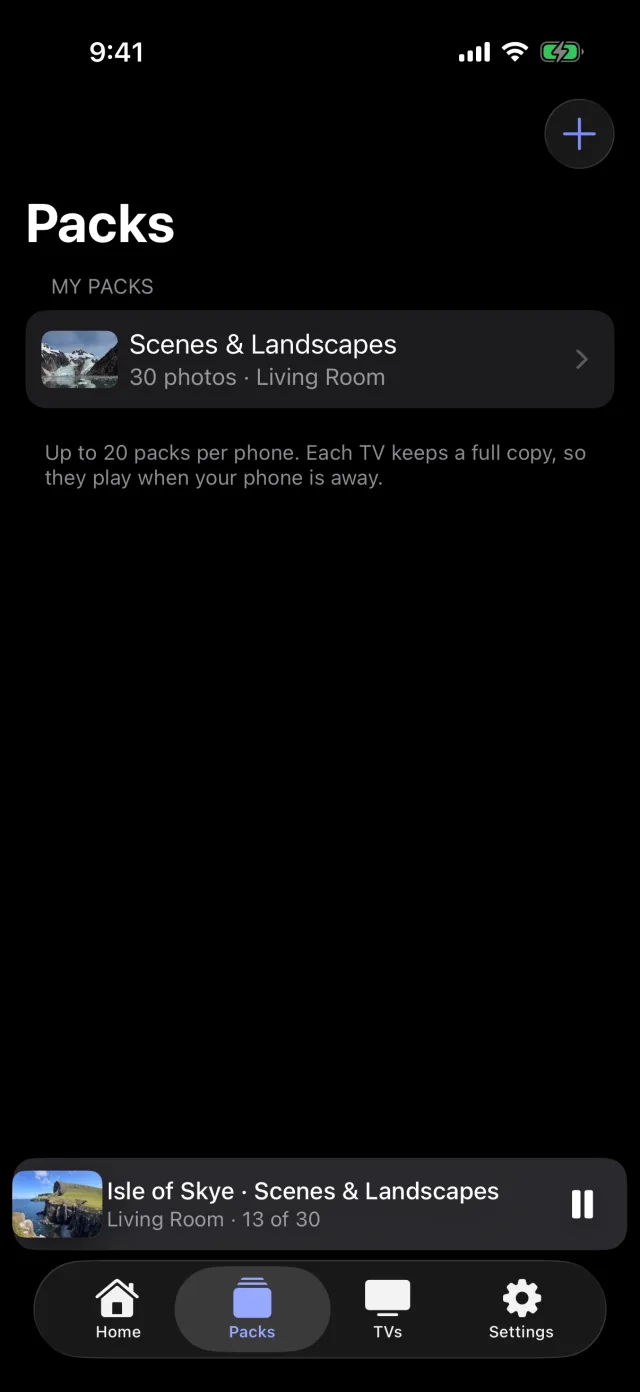
- Each TV keeps up to 6 GB of phone packs by default. You can change it on the TV under Settings, then iPhones. Each phone can have up to 20 packs.
- Every paired phone sees every pack on a shared TV, with its owner's name. Anyone can switch a pack on or off for a TV. Only the phone that made it can edit or delete it.
- Location is used only for the place name. Copies on the TV do not contain GPS coordinates. A caption shows only if the photo has one embedded; captions typed in the Photos app are not available to other apps.