Aardy for iPhone
Now Playing and the phone as a remote
Start a slideshow, follow along, scrub through photos, and control a TV.
Start a slideshow
Use Start on the TV's row in the TVs tab, or in the Now Playing card's TV picker, and optionally choose a pack. The TV shows Started from Erik's iPhone.
- With a Mac, Start works whatever the TV is doing: the Mac wakes it if it is asleep and opens Aardy. Stop returns the TV to what it was showing before. The TV must be paired for remote control on the Mac.
- Without a Mac, the phone can start the slideshow only when Aardy is already open on the TV. iPhones have no way to wake an Apple TV or open an app on it. Otherwise the phone tells you to open Aardy with the Siri Remote.
Follow along
While Aardy is open, every TV that is playing gets a Now Playing card:
- the photo, its date, place, caption and camera, and the pack and position ("212 of 480");
- previous, pause and next;
- a filmstrip scrubber: drag through the play order and let go to jump there;
- Love, Hide, Info on TV (shows the photo's info overlay on the TV) and Save (keeps the photo in your Photos library);
- in the ... menu: Play pack, Show this on... (sends another TV to the same pack and photo), and Stop.
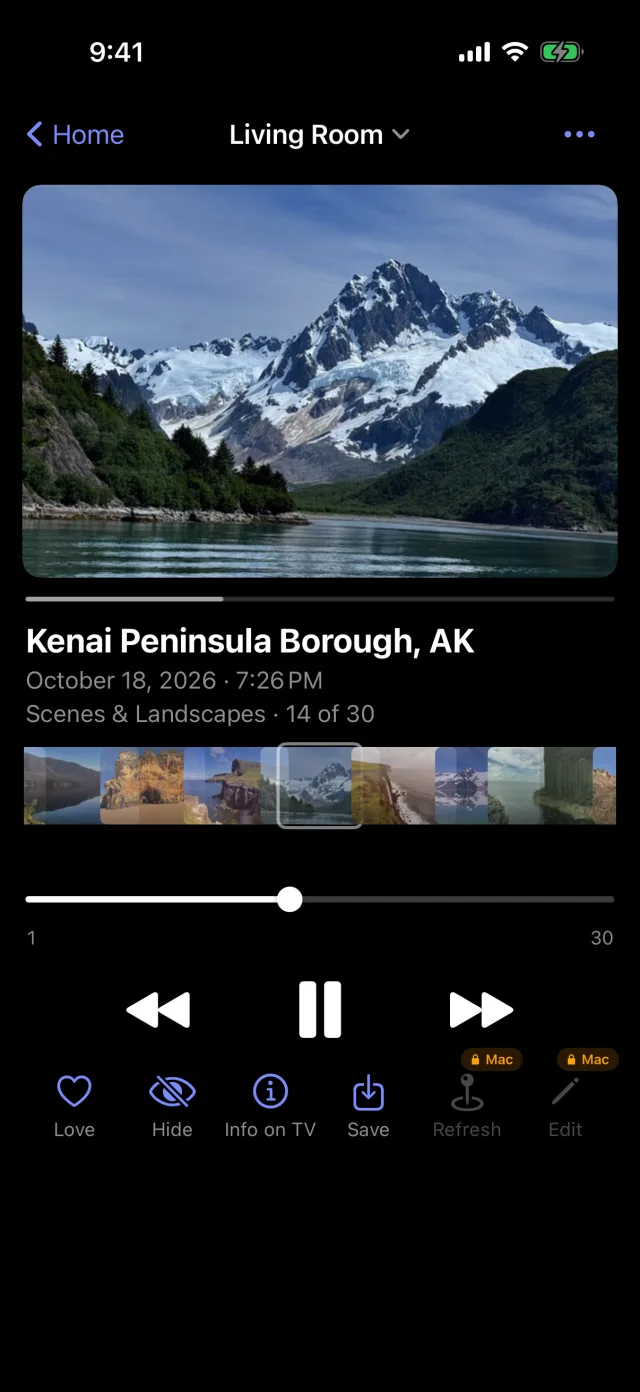
Swipe between TVs, or tap the title to pick one. A mini-player above the tab bar shows the current TV.
Good to know
- Several phones can follow the same TV. The TV briefly names who acted ("Paused, Mom's iPhone") and every phone sees the change.
- A pause started from a phone ends by itself after 10 minutes if no phone is following any more. A pause from the Siri Remote stays.
- Following works only while Aardy is open on the phone. There are no Lock Screen controls.
- View only means the phone cannot reach the TV directly, for example because it is on another network segment. The card shows what the Mac reports, without controls.
- Hide without a Mac works only on your own packs.