Pack design
Shape how your memories play
A pack is a set of your own photos with its own order, captions, look and sound. You design it in Aardy Manager on the Mac. Here is what each choice does on your Apple TV.
Screenshots are shown with sample photos.
Jump to what matters to you
Gather & choose
- Build a packChoose what goes in, and what stays out.
- TagsLabel photos like “Grandma” and filter by them.
Order & pacing
Words on screen
- CaptionsWords over a photo, where you put them.
- Dates, places and landmarksFix dates, places and landmarks once.
Look & sound
- Look and presentationTransitions, timing, portraits and Live Photos.
- SoundAmbient sound, your music or Apple Music.
On your TVs
- Put packs on TVsChoose which packs play on which TV.
- Marked photosMark on the couch, fix at the Mac.
Gather & choose
Build a pack from your photos
A pack is a set of your own photos that plays together. You choose what goes in, and what stays out.
In Aardy Manager
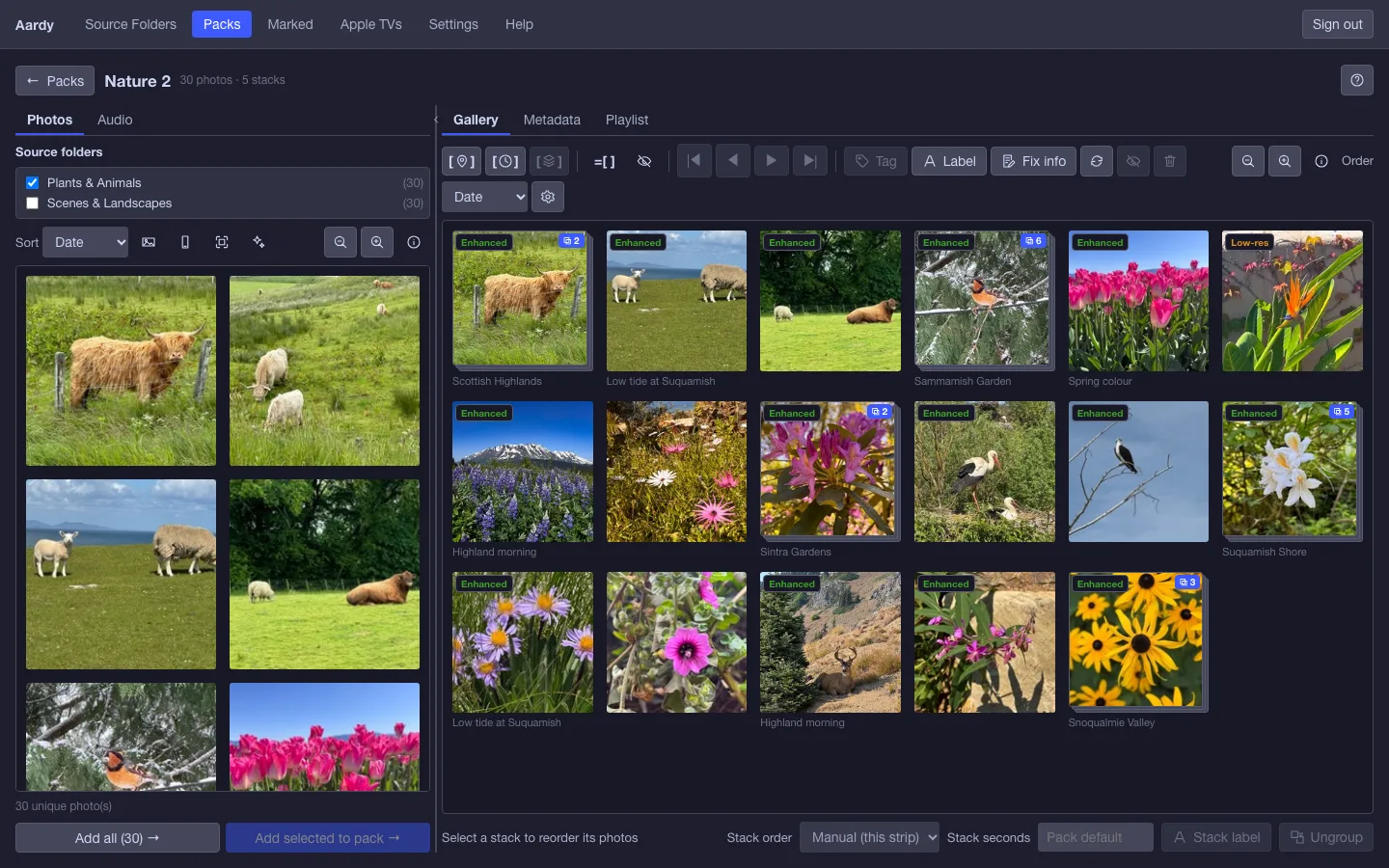
Tick the source folders and Photos albums you want, then add the photos to the pack. Remove any that don’t belong. Or hide a photo or a whole stack: it stays in the pack, but is skipped. A filter in the gallery toolbar leaves hidden photos out of view, so you can sort the photos that will actually play.
On your TV
The TV plays what is in the pack, and nothing else. Hidden photos and hidden stacks are skipped, in every TV that plays the pack.
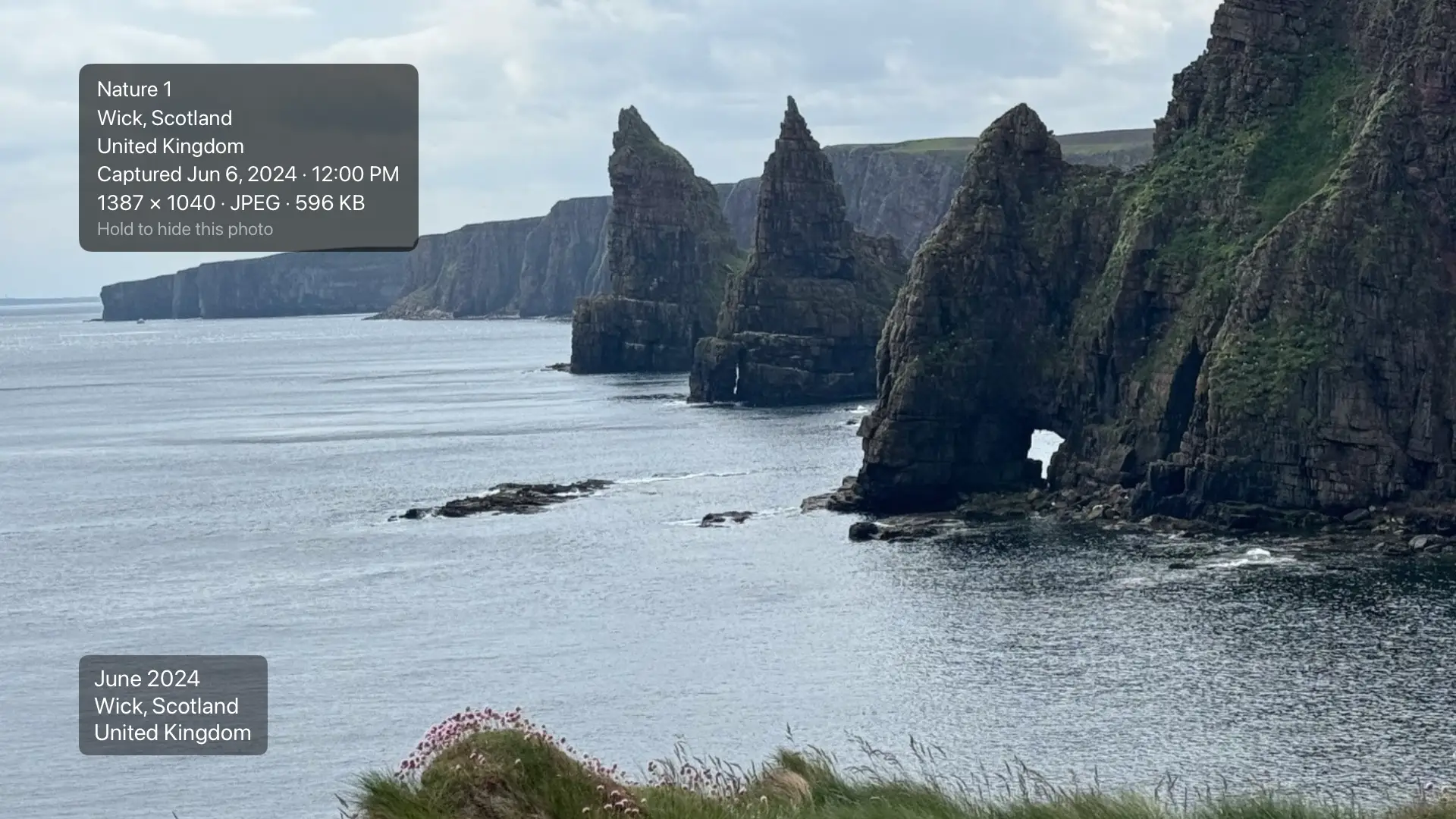
Spot one that doesn’t belong while it plays? Click the Siri Remote to open the info panel, then press and hold the clickpad to hide that photo. (A photo that came from an iPhone can only be hidden from the iPhone that sent it.)
Gather & choose
Tag photos to find them later
Tags are labels you attach to photos, like “Christmas” or “Grandma”.
In Aardy Manager
Select photos in the gallery and tag them. A photo you mark as a favorite in the Photos app gets a Favorite tag automatically.
On your TV
Tags don’t change what a pack contains. They do power a filter: in the TV’s Settings, you can narrow a pack to one or more tags (or years or places) for that TV, without touching the pack itself.
Order & pacing
Choose the play order
Order sets the story your pack tells.
In Aardy Manager
Pick by date, by place or manual. In manual order, drag photos in the gallery, use the move buttons, or open the order list to nudge a photo up or down one place at a time. Shuffle is a switch of its own.
On your TV
- By date plays oldest to newest, using the date you corrected if you fixed one.
- By place groups the photos by country, then city, so a trip plays in one stretch.
- Manual plays exactly the order you set.
- Shuffle mixes the pack up, but stacks stay together. The shuffle is stable for a TV for the day, so it doesn’t reshuffle every time you look.
Order & pacing
Group moments into stacks
A stack is a group of photos that belongs together: a burst, a moment, a whole event.
In Aardy Manager
Select photos and group them into a stack, or let Aardy do it: group by place or group by time clusters the whole pack for you. Open a stack to reorder its photos in the stack strip, give it its own seconds per photo, and choose how the stack orders itself: manually, by date or by location. That is separate from the pack’s own order.
On your TV
A stack plays as one unit. Its photos always run together, in the stack’s own order, and are never split up by shuffling or mixing packs. If the stack has its own pace, each of its photos shows for that long, so a burst can fly by or a favorite moment can linger.
Words on screen
Say it with a caption
Words make a photo a memory.
In Aardy Manager
Add a label to a photo or to a whole stack. Choose its text, font size, color, backing opacity and position, or pick one you wrote before from your label library. For a stack, choose whether the label shows on the first photo only, or on every photo.
On your TV
The label is drawn over the photo, where you put it. A stack’s label shows on its first photo or on all of them, as you chose. The “Show labels” switch in pack settings turns every label for the pack on or off.
Words on screen
Get the dates and places right
What the TV says about a photo is only as good as what the photo knows.
In Aardy Manager
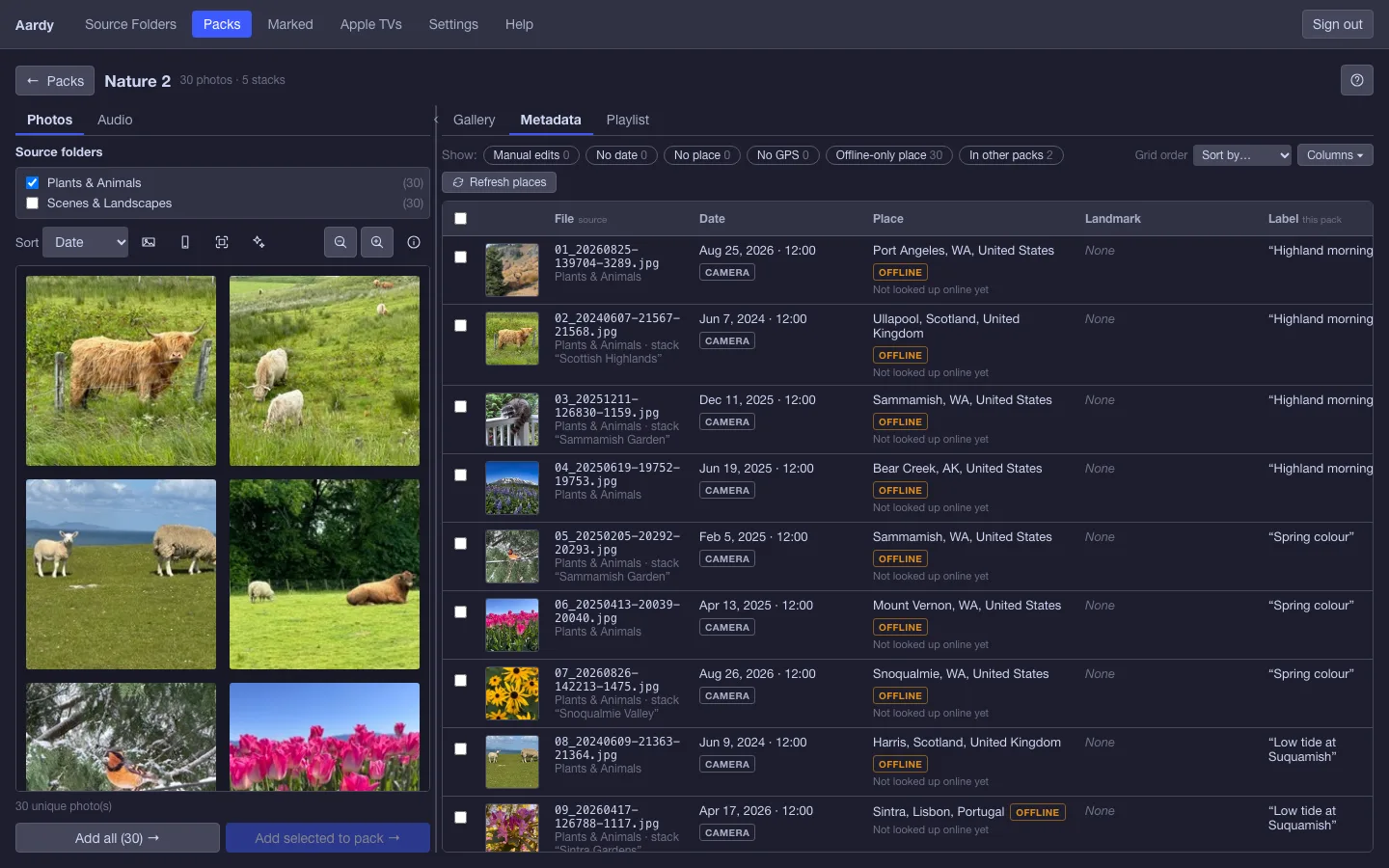
The metadata table lists every photo’s date, place, landmark and label, and where each one came from: the camera, the built-in map, an online lookup, or you. Fix a value by hand and it always wins. Select many rows and bulk edit them at once, revert a fix, or undo a change. Refresh places looks up places and landmarks online.
On your TV
What you see in the table is what the TV shows. The date, the place and the landmark appear in the caption over the photo, and in the info panel when you click the remote, along with the camera details the photo has. A fixed date also moves the photo in a by-date pack.
Look & sound
Decide how the pack looks
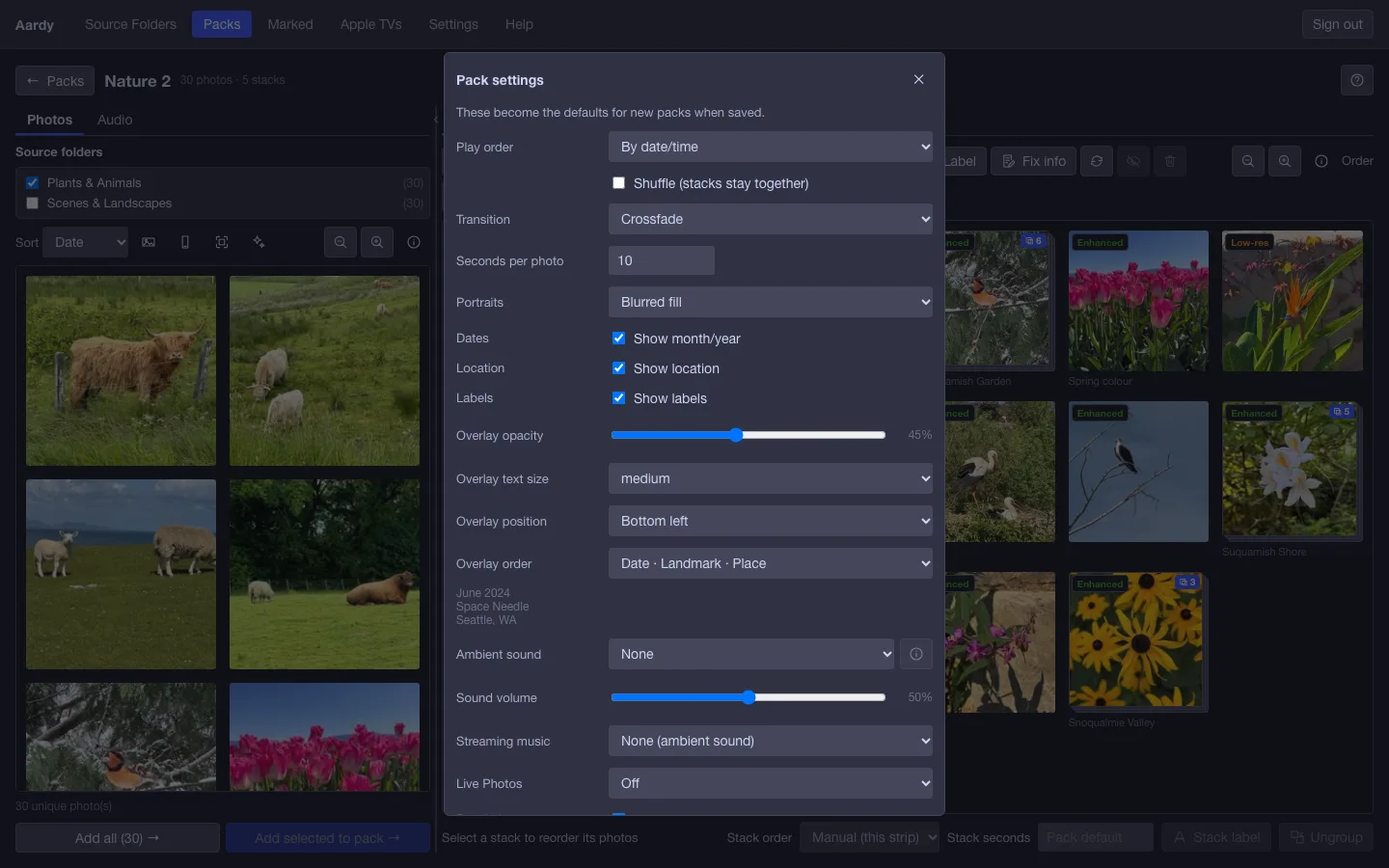
Each pack has its own presentation settings. Open them with the gear in the gallery toolbar.
In Aardy Manager
- Transition, from sixteen choices (a slow Ken Burns zoom, a cube, origami and more), or Varied, which rotates through them.
- Seconds per photo, from 1 to 120.
- Dates, location and labels: show or hide each.
- Caption size and opacity, its position, and the order of date, place and landmark.
- Portraits: blurred fill, pair two up, crop to fill, or letterbox.
- Live Photos: off, silent, or with sound.
On your TV
The TV applies every setting as the photos play: the transition between photos, how long each one stays, and the caption with only the pieces you chose, in your order, at your size and opacity.
A portrait photo fills the screen by your rule. With “Pair two up,” two portraits that follow each other play side by side (stacked photos are not paired).

Look & sound
Add a soundtrack
Quiet sound keeps a room company without taking it over.
In Aardy Manager
Choose an ambient sound such as rain or ocean, a local playlist built from your own music folders, or Apple Music. Set the volume for the pack.
On your TV
The TV plays the sound with the pack. Each TV can still trim its own volume, or choose a different sound for that room.
On your TVs
Put packs on your TVs
Packs only matter once they play somewhere.
In Aardy Manager
On the Apple TVs page, add one or more packs to a TV and put them in order. Choose One after another or Mixed together, and how a mix blends the packs. You can override a pack’s look for one TV.
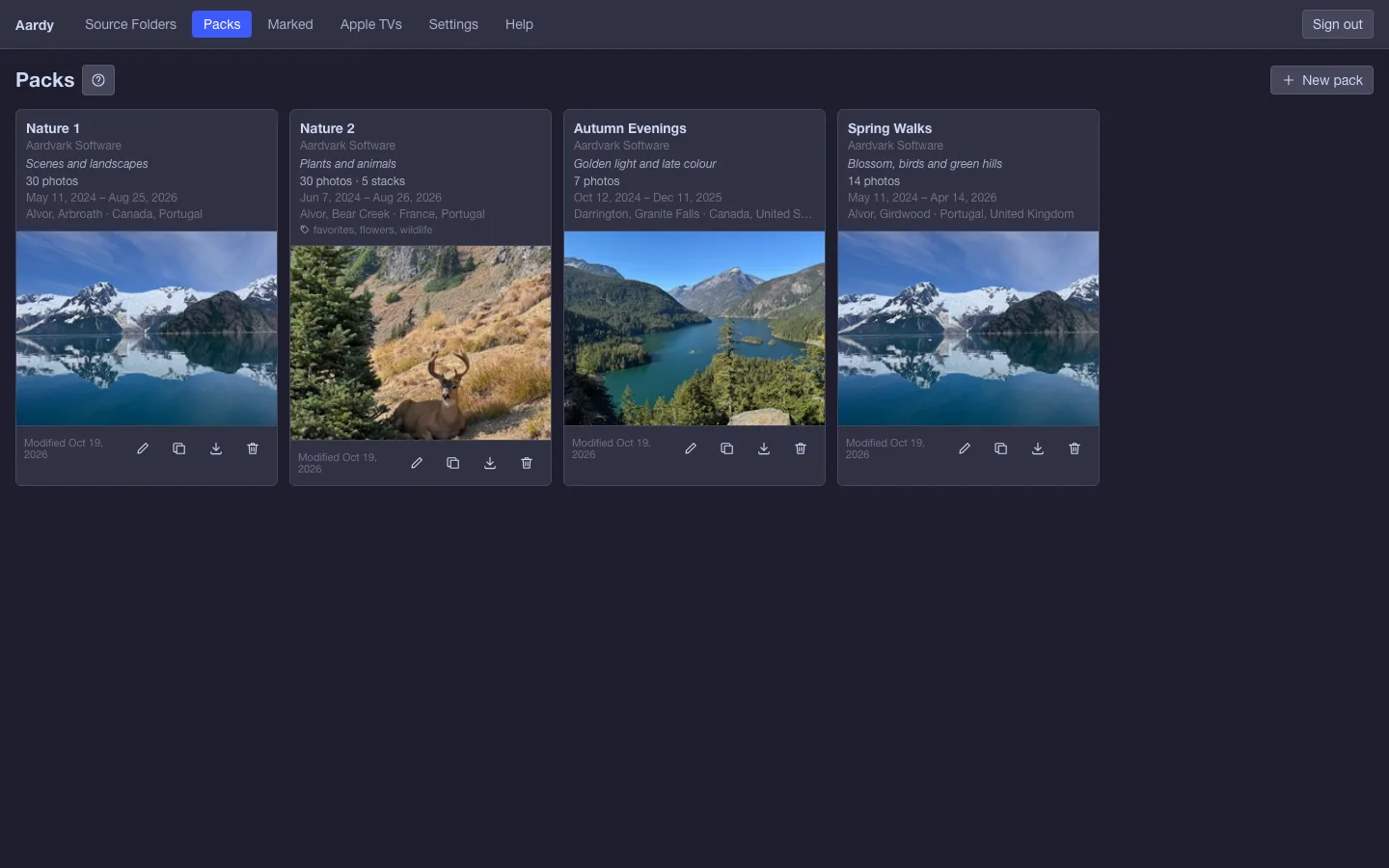
On your TV
The TV plays its packs in order, or blends them as a mix, with stacks kept whole either way. From the couch, press and hold the clickpad to open Settings: turn packs on or off, change their order, filter a pack by year, place or tag, and override the look for that TV.
On your TVs
Mark a photo, fix it later
A loop between the couch and the manager.
In Aardy Manager
The Marked page collects every photo you marked from the remote, newest first, across all your packs. Open one in its Pack Builder to fix it, or unmark it. If you jot down the reference code from the TV’s credits card, the find box takes you straight to that photo.
On your TV
Swipe up on the Siri Remote to mark the photo you are looking at. Swipe up again to see its credits card, with the date, place, label and stack, and a reference code to find it by.
Start with a pack
Aardy for Mac is free, and the Pack Builder is part of it.